---
title: Adding charts in bulk to reports
description: Learn how to quickly select multiple instruments in Proqio using the area tool, multi-selection tool, or by selecting entire sites or groups.
---
[Skip to content](https://help.proqio.com/adding-charts-in-bulk-to-reports-0#main-content)
[](https://help.proqio.com/?hsLang=en)
Open main navigation
Close main navigation
How can we help you?
- There are no suggestions because the search field is empty.
1. [Knowledge base](https://help.proqio.com/?hsLang=en)
2. [Report Creation](https://help.proqio.com/report-creation?hsLang=en)
# Adding charts in bulk to reports
## Adding charts in bulk significantly streamlines the process of generating reports containing a large number of sensors, saving you time and ensuring accurate and efficient reporting.
### Why is this functionality useful?
It will allow you to easily and simultaneously add multiple charts reflecting data from numerous different instruments, perfect for projects with a large quantity and variety of different sensors.
---
#### **Feature Highlights:**
- **Efficient Sensor Integration:** Easily incorporate data from new sensors weekly without performance bottlenecks.
- **Streamlined Reporting:** Replace outdated processes with a robust and efficient bulk reporting capability.
- **Significant Time Savings:** Generate comprehensive reports quickly, eliminating manual chart creation for each new sensor
- **Customizable Charts:** Configure chart types, data sources, fields, and layouts to meet your specific reporting needs.
---
#### **How Do I Use This Functionality?**
Use this tool when you want to manually select specific instruments one by one.
**How to use it:**
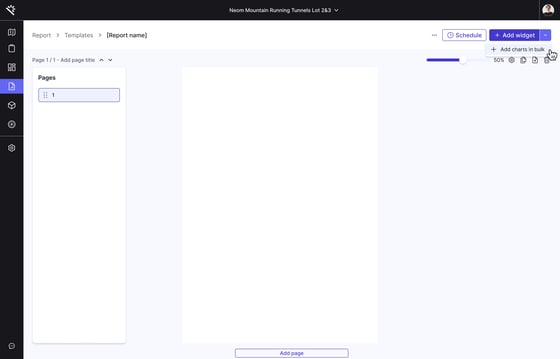
1. Open the desired report template and click the "Add Chart in bulk" button.
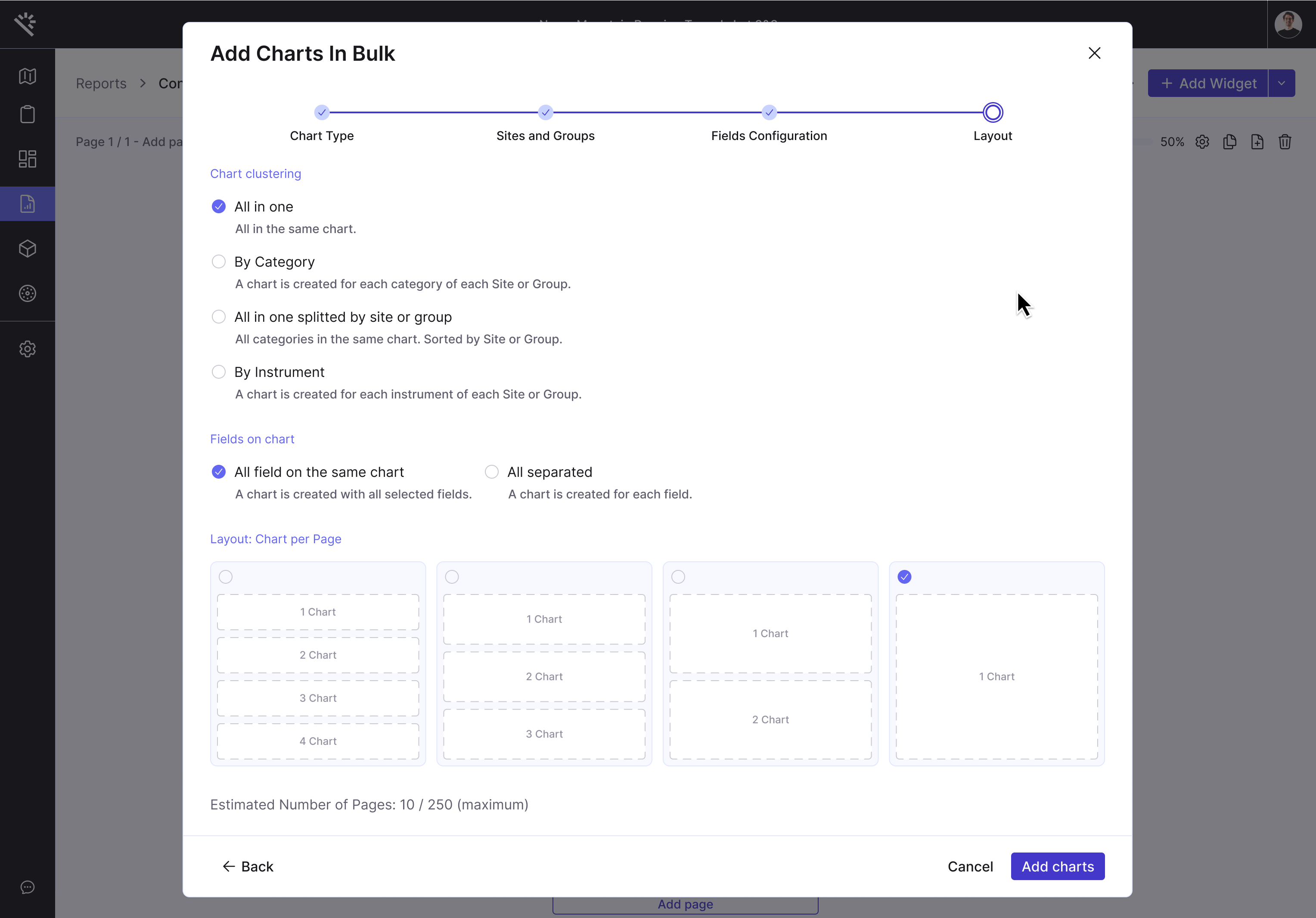
2. Follow the steps in the module:
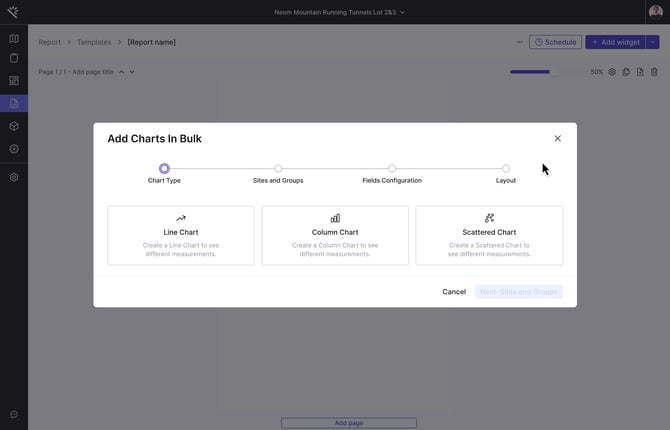
- **Chart Type:** Choose the primary type of chart you want to create in bulk.
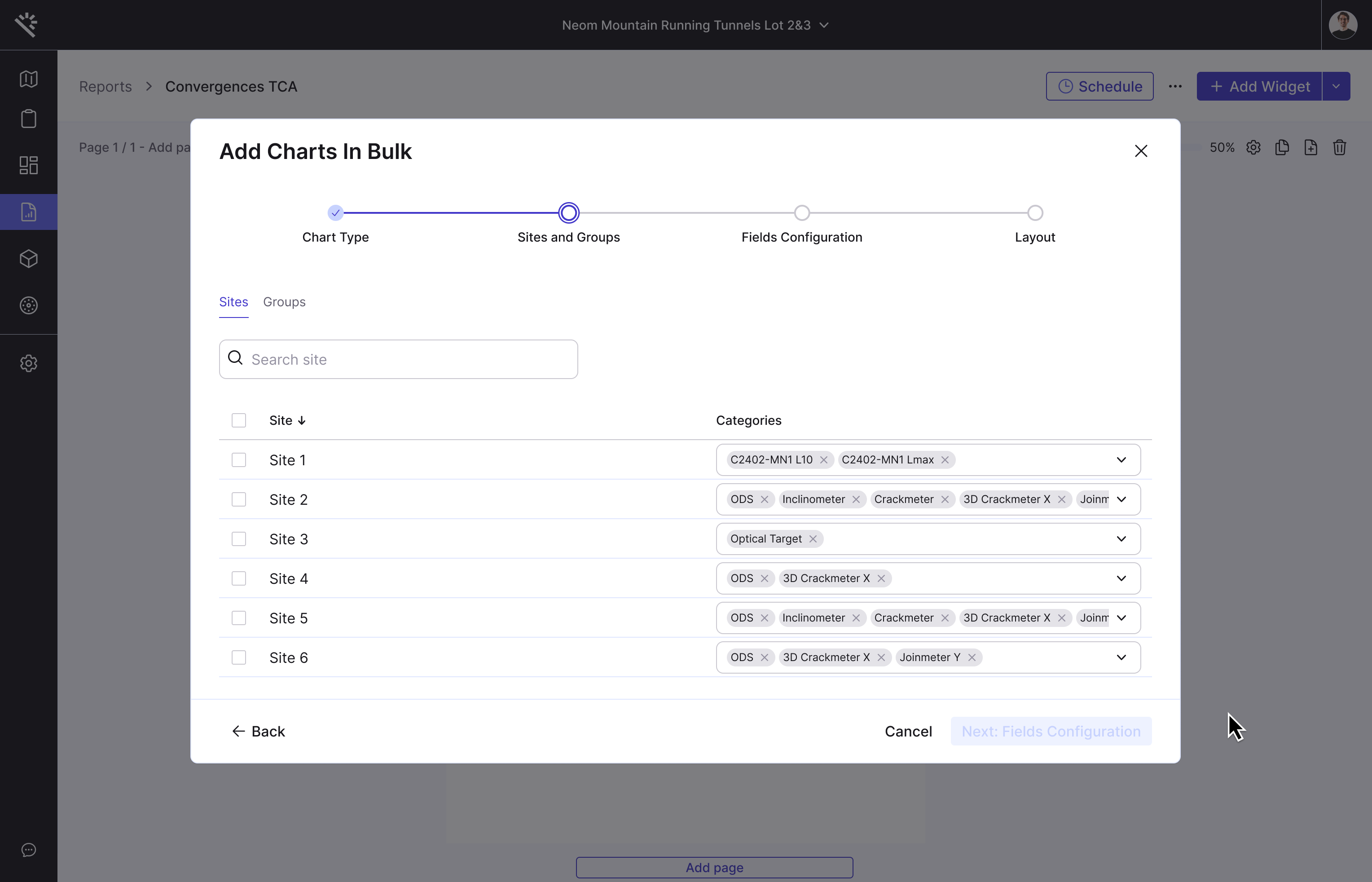
1. - **Sites and Groups:** Select the specific sites, groups, and categories of instruments you want to include in the report.
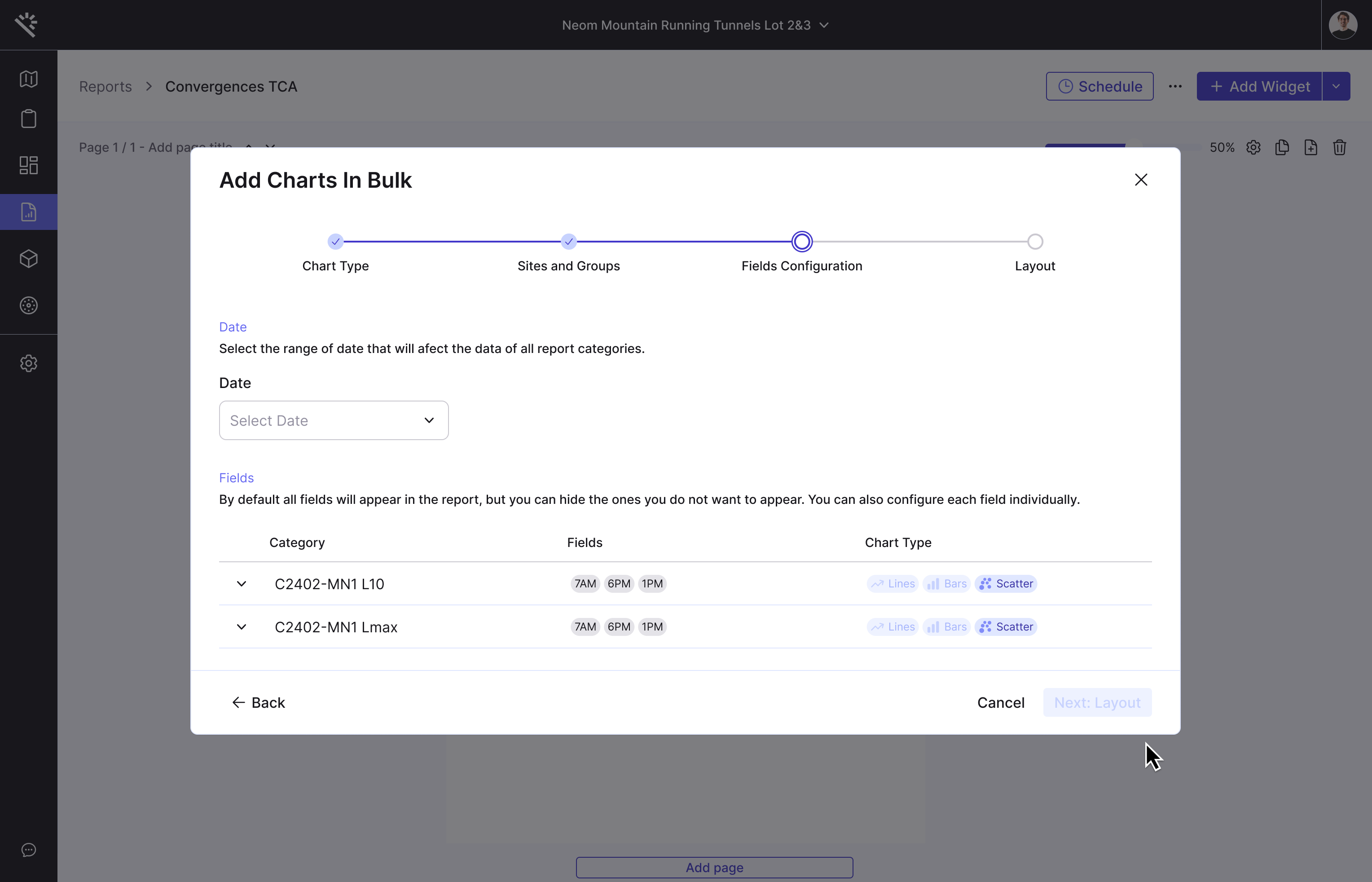
- **Fields Configuration:** Configure the settings for each field within the selected categories.
- **Layout:** Customize the layout options, including design, documentation inclusion, chart clustering, field grouping, and the number of widgets per page.
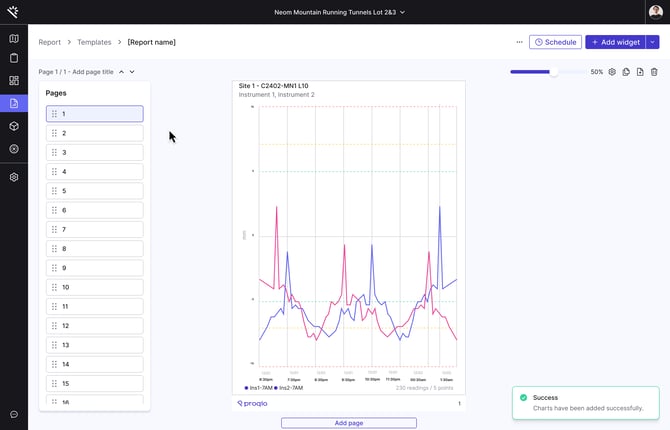
2. Click the "Add Charts" button and watch the magic happen!
- [Getting started](https://help.proqio.com/getting-started?hsLang=en#main-content)
- [Project details](https://help.proqio.com/getting-started?hsLang=en#project-details)
- [Teams and members](https://help.proqio.com/getting-started?hsLang=en#teams-and-members)
- [Account](https://help.proqio.com/getting-started?hsLang=en#account)
- [Configure Your Instruments](https://help.proqio.com/getting-started?hsLang=en#configure-your-instruments)
- [Notifications](https://help.proqio.com/getting-started?hsLang=en#notifications)
- [Connectivity methods](https://help.proqio.com/getting-started?hsLang=en#connectivity-methods)
- [Alerts](https://help.proqio.com/getting-started?hsLang=en#alerts)
- [Map](https://help.proqio.com/map?hsLang=en#main-content)
- [Tools](https://help.proqio.com/map?hsLang=en#tools)
- [Analysis](https://help.proqio.com/map?hsLang=en#analysis)
- [Monitoring](https://help.proqio.com/monitoring?hsLang=en#main-content)
- [Instruments](https://help.proqio.com/monitoring?hsLang=en#instruments)
- [Dashboard Creation & Configuration](https://help.proqio.com/dashboard-creation-configuration?hsLang=en)
- [Report Creation](https://help.proqio.com/report-creation?hsLang=en)
- [New Feature Releases](https://help.proqio.com/new-feature-releases?hsLang=en)
- [Project Hierarchy](https://help.proqio.com/project-hierarchy?hsLang=en)
- [Analyse and Interpret your Data](https://help.proqio.com/analyse-and-interpret-your-data?hsLang=en)
- [Learn How to Navigate Proqio](https://help.proqio.com/learn-how-to-navigate-proqio?hsLang=en)
- [Configure Your Map View](https://help.proqio.com/configure-your-map-view?hsLang=en)
- [How to Add a Real Time Picture on Map](https://help.proqio.com/how-to-add-a-real-time-picture-on-map?hsLang=en)
- [Managing Your Data](https://help.proqio.com/managing-your-data?hsLang=en)
- [Uploading Records Manually](https://help.proqio.com/uploading-records-manually?hsLang=en#main-content)
- [Steps for uploading instrument data records manually](https://help.proqio.com/uploading-records-manually?hsLang=en#steps-for-uploading-instrument-data-records-manually)
- [ADA](https://help.proqio.com/ada?hsLang=en)
- [Digital Twin](https://help.proqio.com/digital-twin?hsLang=en)
- [Lines and Textures](https://help.proqio.com/lines-and-textures?hsLang=en)
[](http://www.proqio.com?hsLang=en)
Copyright © 2026, Proqio