---
title: Guided Category Set Up
description: Easily set up your categories with this feature.
---
[Skip to content](https://help.proqio.com/guided-category-and-instrument-set-up-0#main-content)
[](https://help.proqio.com/?hsLang=en)
Open main navigation
Close main navigation
How can we help you?
- There are no suggestions because the search field is empty.
1. [Knowledge base](https://help.proqio.com/?hsLang=en)
2. [Getting started](https://help.proqio.com/getting-started?hsLang=en)
3. [Configure Your Instruments](https://help.proqio.com/getting-started?hsLang=en#configure-your-instruments)
# Guided Category Set Up
## The Guided Category Setup feature introduces an interactive step-by-step configuration flow for setting up your categories and instruments in Proqio. Whether you're doing the set up from scratch or fine-tuning existing structures, this guided experience ensures a smoother and more intuitive setup process.
### Why is this functionality useful?
Category and instrument configuration is foundational to organizing your monitoring data in Proqio. The new **Guided Category Setup** simplifies this process by offering a structured, progress-driven interface. It helps reduce setup time, minimize errors, and gives users the flexibility to configure and revisit each step as needed.
---
### Feature Highlights
- **Streamlined Configuration:** Complete your category setup efficiently with a clearly defined, step-by-step process.
- **Flexible Navigation:** Navigate freely between steps, skip irrelevant ones, or return to incomplete tasks as needed.
- **Visible Progress Tracking:** Quickly assess your progress and spot pending tasks directly from the category list view.
- **Less Mistakes:** This structured setup flow ensures you don't miss critical configuration steps.
- **Auto-Save Functionality:** Progress and inputs are automatically saved, so you can exit and resume without losing your place.
---
### How does the Guided Category Setup Feature work?
The experience begins after selecting a category template
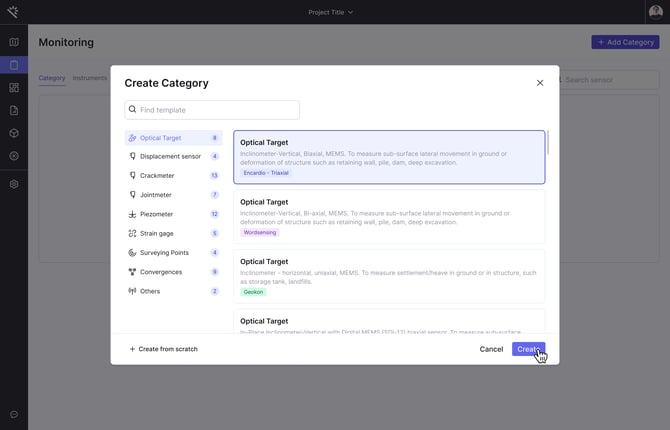
From there, the setup pop-up window launches and walks you through each configuration step:
#### **1. Step Navigation**
- A visual step tracker appears at the top of the modal to show your progress.
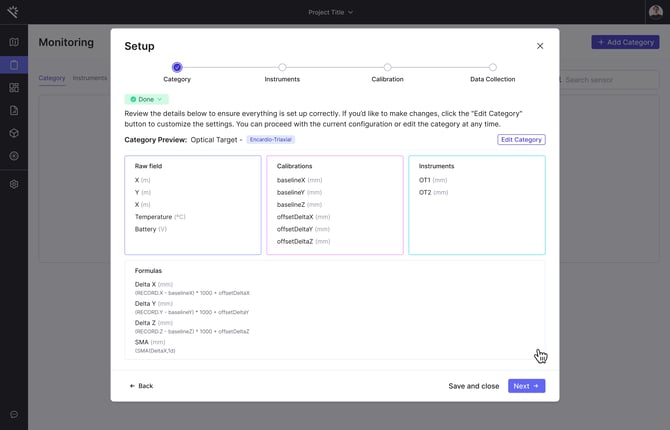
- **Clickable Steps**: Navigate freely to any step within the flow.
- **Step Status Management**:
- Steps are automatically marked as *Done* upon completion.
- You can also manually update a step’s status:
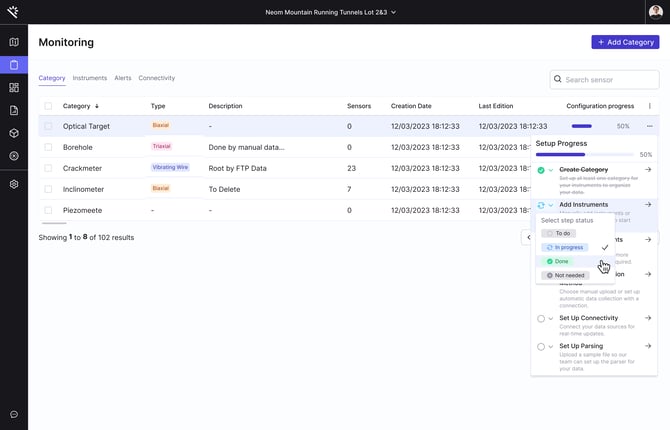
- From the **progress dropdown** in the *Category Monitoring* section (hover over the progress indicator).
- Using the **status button** at the top of each step inside the modal.
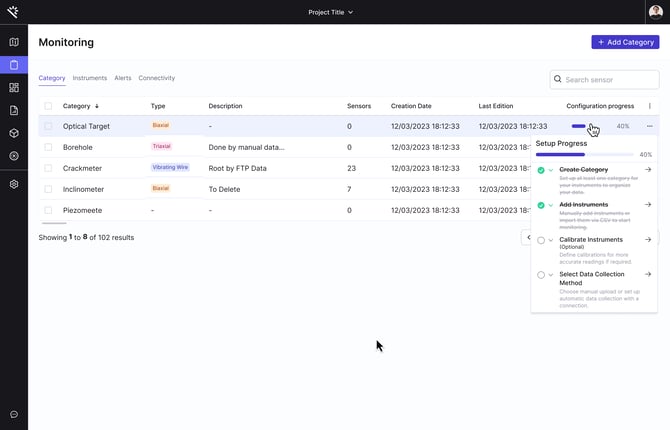
- **Saved Progress**: Your work is saved automatically when exiting the feature.
#### **2. Re-entering the Setup Flow**
- **From Progress Tracking**: In *Category Monitoring*, click the progress dropdown. Select any step to re-open that specific part of the setup.
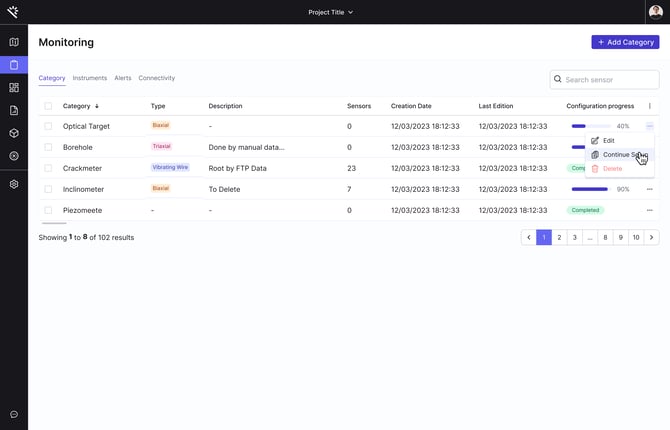
- **From the Ellipsis Menu (···)**:
- Choose *Continue Setup* from the dropdown next to each category.
- You’ll be taken to:
- The first incomplete step (if tasks are still pending), or
- The first step (*Category*) if everything is marked *Done*, enabling easy review or reconfiguration.
#### **3. Progress Tracking**
- **Progress Column**: A new column in your category list shows setup progress as a percentage.
- **Interactive Progress Bar**:
- Hover to view a detailed list of all setup steps and their current status:
- *To Do* – not started yet
- *In Progress* – currently being edited
- *Done* – completed
- *Not Needed* – intentionally skipped (shown with strikethrough)
---
Please see the below video for a visual representation of this feature. The below video also includes the[Onboarding Dialogue Feature](https://help.proqio.com/onboarding-dialogue?hsLang=en), another very helpful feature for new Proqio users
- [Getting started](https://help.proqio.com/getting-started?hsLang=en#main-content)
- [Project details](https://help.proqio.com/getting-started?hsLang=en#project-details)
- [Teams and members](https://help.proqio.com/getting-started?hsLang=en#teams-and-members)
- [Account](https://help.proqio.com/getting-started?hsLang=en#account)
- [Configure Your Instruments](https://help.proqio.com/getting-started?hsLang=en#configure-your-instruments)
- [Notifications](https://help.proqio.com/getting-started?hsLang=en#notifications)
- [Connectivity methods](https://help.proqio.com/getting-started?hsLang=en#connectivity-methods)
- [Alerts](https://help.proqio.com/getting-started?hsLang=en#alerts)
- [Map](https://help.proqio.com/map?hsLang=en#main-content)
- [Tools](https://help.proqio.com/map?hsLang=en#tools)
- [Analysis](https://help.proqio.com/map?hsLang=en#analysis)
- [Monitoring](https://help.proqio.com/monitoring?hsLang=en#main-content)
- [Instruments](https://help.proqio.com/monitoring?hsLang=en#instruments)
- [Dashboard Creation & Configuration](https://help.proqio.com/dashboard-creation-configuration?hsLang=en)
- [Report Creation](https://help.proqio.com/report-creation?hsLang=en)
- [New Feature Releases](https://help.proqio.com/new-feature-releases?hsLang=en)
- [Project Hierarchy](https://help.proqio.com/project-hierarchy?hsLang=en)
- [Analyse and Interpret your Data](https://help.proqio.com/analyse-and-interpret-your-data?hsLang=en)
- [Learn How to Navigate Proqio](https://help.proqio.com/learn-how-to-navigate-proqio?hsLang=en)
- [Configure Your Map View](https://help.proqio.com/configure-your-map-view?hsLang=en)
- [How to Add a Real Time Picture on Map](https://help.proqio.com/how-to-add-a-real-time-picture-on-map?hsLang=en)
- [Managing Your Data](https://help.proqio.com/managing-your-data?hsLang=en)
- [Uploading Records Manually](https://help.proqio.com/uploading-records-manually?hsLang=en#main-content)
- [Steps for uploading instrument data records manually](https://help.proqio.com/uploading-records-manually?hsLang=en#steps-for-uploading-instrument-data-records-manually)
- [ADA](https://help.proqio.com/ada?hsLang=en)
- [Digital Twin](https://help.proqio.com/digital-twin?hsLang=en)
- [Lines and Textures](https://help.proqio.com/lines-and-textures?hsLang=en)
[](http://www.proqio.com?hsLang=en)
Copyright © 2026, Proqio
```json
{
"@context" : "https://schema.org",
"@type" : "VideoObject",
"contentUrl" : "https://stream.mux.com/yYxoQ00BJVlO00i1d4ZY4ly7TuafseL2p1BKvzUXywuUk/capped-1080p.mp4",
"dateModified" : "2025-07-28T14:32:25.299Z",
"duration" : "PT2M2S",
"height" : 2160,
"name" : "Proqio- onboarding features last",
"thumbnailUrl" : "https://145149017.fs1.hubspotusercontent-eu1.net/hubfs/145149017/Proqio-%20onboarding%20features%20last.mov/medium.jpg",
"uploadDate" : "2025-07-28T14:32:20.083Z",
"width" : 4484
}
```