---
title: How to create a Team?
description: This article provides a practical guide on how to create a team, outlining the essential steps from defining clear objectives and selecting suitable members to establishing effective communication and collaboration strategies. Whether for a professional project, a community initiative, or any group endeavor, learn the key considerations for building a cohesive and successful team.
---
[Skip to content](https://help.proqio.com/how-to-create-a-team#main-content)
[](https://help.proqio.com/?hsLang=en)
Open main navigation
Close main navigation
How can we help you?
- There are no suggestions because the search field is empty.
1. [Knowledge base](https://help.proqio.com/?hsLang=en)
2. [Getting started](https://help.proqio.com/getting-started?hsLang=en)
3. [Teams and members](https://help.proqio.com/getting-started?hsLang=en#teams-and-members)
# How to create a Team?
## Creating a team in Proqio enables effective collaboration and management. You need to create a team to restrict users' rights to specific Sites or Groups of instruments. Follow this guide to set up your team efficiently.
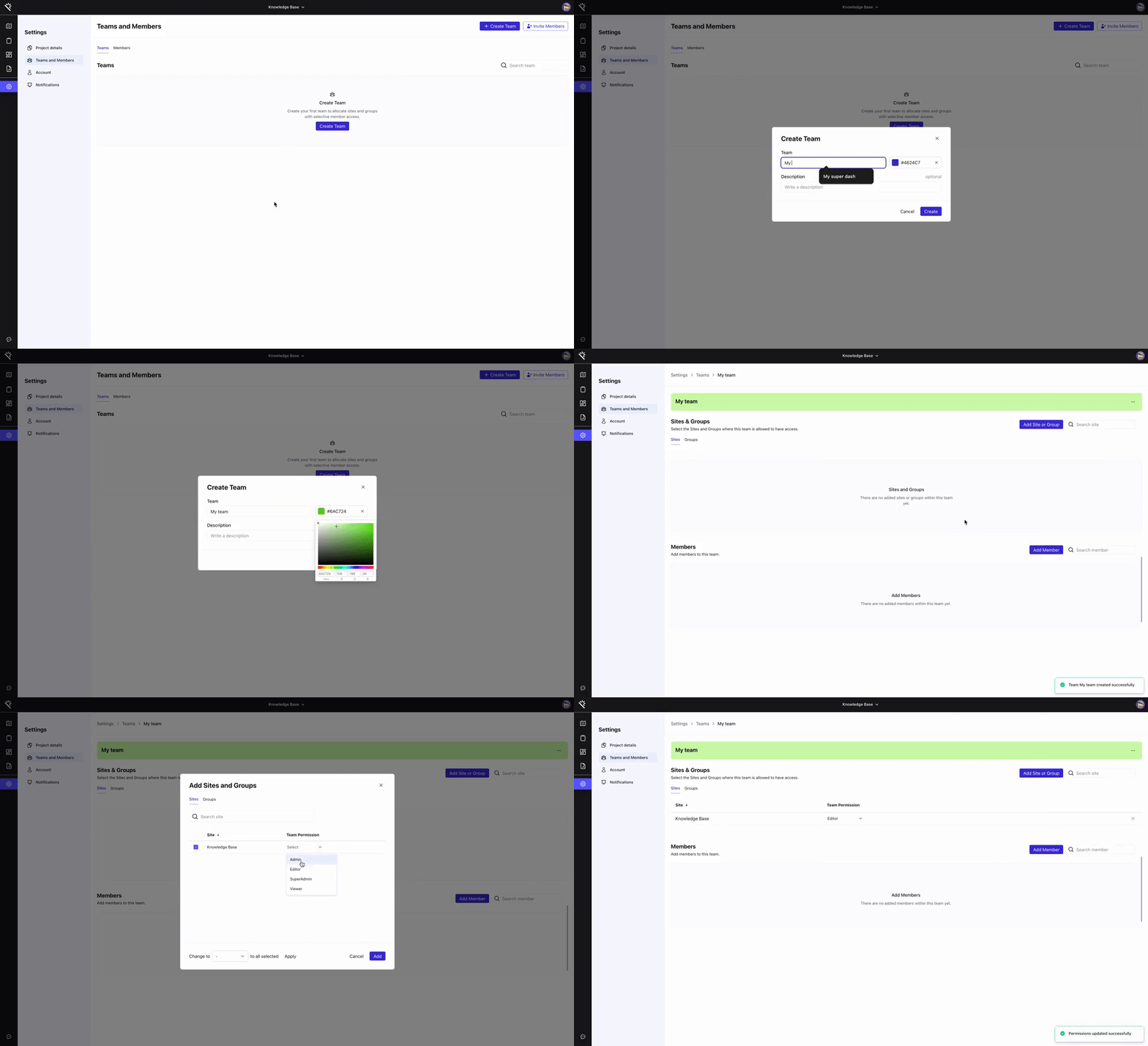
1. **Click on Create a team:** Creating a team means setting up a new group of people within a system or organization for collaboration or project work. In Teams and Members settings, click the "Create Team" option.
2. **Enter the team’s name and mention a description:** Type the name you want to assign to a new team and describe your team by clicking the description option.
3. **Choose the color:** Select the color palette to give a color theme for your team.
4. **Click on the create:** Once all details are entered, click the "Create" button to finalize the team creation process.
5. Once the team is created, add **sites or groups** and **members** to that team to assign **desired permissions**.
**Important clarification about team access logic**
Adding a user to a team does not automatically grant them access to any Site within your project.
For a user to access a specific Site or Group of instruments, two conditions must be met:
1. The Site or Group must be assigned to the team.
2. The user must be added to that same team.
Access permissions are controlled through the combination of team membership and the Sites or Groups assigned to that team. If either of these steps is missing, the user will not have access to the desired data.
---
- **Why do I need to create a team in Proqio?**
Creating a team in Proqio helps in restricting user rights to specific sites or groups of instruments, ensuring that only authorized members have access to certain data and tools.
- **Where can I find the option to create a team?**
The option to create a team is available in the Teams and Members settings
within your Proqio dashboard.
- **What information do I need to provide when creating a team?**
You need to provide a team name, select a color palette for your team, and write a brief description of your team.
- **Can I edit the team details after creating it?**
Yes, you can edit the team details by navigating to the Teams and Members
settings and selecting the team you wish to modify.
- **What is the purpose of selecting a color palette for my team?**
Selecting a color palette helps in easily identifying your team among others,
providing a visual distinction.
- **How do I ensure that only specific users have access to my team?**
By creating a team and assigning specific sites or groups of instruments, you can restrict access to only those users who are part of the team.
- [Getting started](https://help.proqio.com/getting-started?hsLang=en#main-content)
- [Project details](https://help.proqio.com/getting-started?hsLang=en#project-details)
- [Teams and members](https://help.proqio.com/getting-started?hsLang=en#teams-and-members)
- [Account](https://help.proqio.com/getting-started?hsLang=en#account)
- [Configure Your Instruments](https://help.proqio.com/getting-started?hsLang=en#configure-your-instruments)
- [Notifications](https://help.proqio.com/getting-started?hsLang=en#notifications)
- [Connectivity methods](https://help.proqio.com/getting-started?hsLang=en#connectivity-methods)
- [Alerts](https://help.proqio.com/getting-started?hsLang=en#alerts)
- [Map](https://help.proqio.com/map?hsLang=en#main-content)
- [Tools](https://help.proqio.com/map?hsLang=en#tools)
- [Analysis](https://help.proqio.com/map?hsLang=en#analysis)
- [Monitoring](https://help.proqio.com/monitoring?hsLang=en#main-content)
- [Instruments](https://help.proqio.com/monitoring?hsLang=en#instruments)
- [Dashboard Creation & Configuration](https://help.proqio.com/dashboard-creation-configuration?hsLang=en)
- [Report Creation](https://help.proqio.com/report-creation?hsLang=en)
- [New Feature Releases](https://help.proqio.com/new-feature-releases?hsLang=en)
- [Project Hierarchy](https://help.proqio.com/project-hierarchy?hsLang=en)
- [Analyse and Interpret your Data](https://help.proqio.com/analyse-and-interpret-your-data?hsLang=en)
- [Learn How to Navigate Proqio](https://help.proqio.com/learn-how-to-navigate-proqio?hsLang=en)
- [Configure Your Map View](https://help.proqio.com/configure-your-map-view?hsLang=en)
- [How to Add a Real Time Picture on Map](https://help.proqio.com/how-to-add-a-real-time-picture-on-map?hsLang=en)
- [Managing Your Data](https://help.proqio.com/managing-your-data?hsLang=en)
- [Uploading Records Manually](https://help.proqio.com/uploading-records-manually?hsLang=en#main-content)
- [Steps for uploading instrument data records manually](https://help.proqio.com/uploading-records-manually?hsLang=en#steps-for-uploading-instrument-data-records-manually)
- [ADA](https://help.proqio.com/ada?hsLang=en)
- [Digital Twin](https://help.proqio.com/digital-twin?hsLang=en)
- [Lines and Textures](https://help.proqio.com/lines-and-textures?hsLang=en)
[](http://www.proqio.com?hsLang=en)
Copyright © 2026, Proqio