---
title: How to invite members to the project?
description: Proqio enables seamless collaboration by allowing users to invite members to projects and assign specific permissions.
---
[Skip to content](https://help.proqio.com/how-to-invite-members-to-the-project#main-content)
[](https://help.proqio.com/?hsLang=en)
Open main navigation
Close main navigation
How can we help you?
- There are no suggestions because the search field is empty.
1. [Knowledge base](https://help.proqio.com/?hsLang=en)
2. [Getting started](https://help.proqio.com/getting-started?hsLang=en)
3. [Teams and members](https://help.proqio.com/getting-started?hsLang=en#teams-and-members)
# How to invite members to the project?
## Proqio enables seamless collaboration by allowing users to invite members to projects and assign specific permissions.
This action is **available only** for project's superadmins and admins.
#### **Inviting Members to a Project**
1. **Navigate to Teams and Members**:
- Access the **Settings** from the left-hand sidebar.
- Select **Teams and Members**.
2. **Click on Invite Member**:
- Use the "Invite Member" button located in the top-right corner of the Teams and Members page.
3. **Enter Member Details**:
- Provide the email address of the person you want to invite.
- Select their role (e.g., Superadmin, Admin, Editor, Viewer).
- Specify which team(s) and site(s) the member will have access to. By default is set the whole project.
- Click on "Add" button to add to the list. Now it's possible to add more members.
4. **Send Invitation**:
- Click "Invite." The user will receive an email with instructions to join Proqio and access the project.
---
#### **Inviting Members in Bulk**
For larger project, Proqio offers a bulk invitation:
1. **Prepare the email list.**
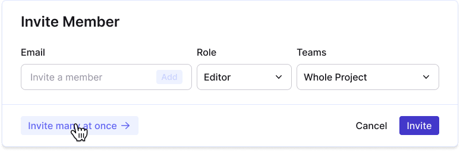
2. In the invitation member modal, click in "Invite may at once" button.
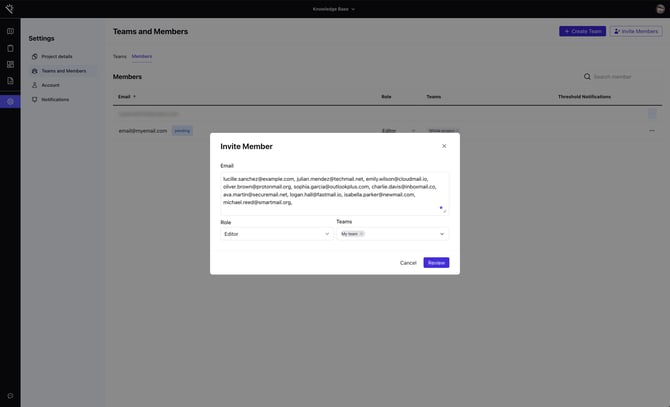
3. Paste the emails separated by comma or in a new line.
4. Click in review and if everything is ok, invite them all.
---
#### **Understanding Permissions**
Proqio uses a tiered permission system that aligns with user roles and team configurations. Below is an overview of each role and its capabilities
| Role | Permissions | Notes |
| --- | --- | --- |
| **Superadmin** | Full control over all projects, teams, sites, and groups. | Can create teams, manage settings, invite members, and edit permissions across all levels. |
| **Admin** | Manage project settings, teams, and site-specific configurations. | Limited to assigned teams/sites; cannot override Superadmin permissions. |
| **Editor** | Edit project data, upload documents/photos, and manage dashboards/reports. | Cannot change team/site configurations or invite new members. |
| **Viewer** | View-only access to dashboards, reports, and project details. | Ideal for stakeholders who need visibility but no editing capabilities. |
Permissions can vary depending on the team, site, or group configurations, ensuring tailored access control for diverse roles and responsibilities.
---
#### **Permissions combinations by Team/Site/Group**
Permissions can be further refined based on team structures or site-specific needs.
Within a team assign granular permissions for sites or groups (e.g., full editing rights for Group 1 but view-only for Group 2).
- Users who didn't access to the project yet are highlighted with a "Pending" tag. You can **resend invitation** for them in case they missed the previous one.
- **Permissions can be updated** anytime by Superadmins or Admins through the Teams and Members section.
- [Getting started](https://help.proqio.com/getting-started?hsLang=en#main-content)
- [Project details](https://help.proqio.com/getting-started?hsLang=en#project-details)
- [Teams and members](https://help.proqio.com/getting-started?hsLang=en#teams-and-members)
- [Account](https://help.proqio.com/getting-started?hsLang=en#account)
- [Configure Your Instruments](https://help.proqio.com/getting-started?hsLang=en#configure-your-instruments)
- [Notifications](https://help.proqio.com/getting-started?hsLang=en#notifications)
- [Connectivity methods](https://help.proqio.com/getting-started?hsLang=en#connectivity-methods)
- [Alerts](https://help.proqio.com/getting-started?hsLang=en#alerts)
- [Map](https://help.proqio.com/map?hsLang=en#main-content)
- [Tools](https://help.proqio.com/map?hsLang=en#tools)
- [Analysis](https://help.proqio.com/map?hsLang=en#analysis)
- [Monitoring](https://help.proqio.com/monitoring?hsLang=en#main-content)
- [Instruments](https://help.proqio.com/monitoring?hsLang=en#instruments)
- [Dashboard Creation & Configuration](https://help.proqio.com/dashboard-creation-configuration?hsLang=en)
- [Report Creation](https://help.proqio.com/report-creation?hsLang=en)
- [New Feature Releases](https://help.proqio.com/new-feature-releases?hsLang=en)
- [Project Hierarchy](https://help.proqio.com/project-hierarchy?hsLang=en)
- [Analyse and Interpret your Data](https://help.proqio.com/analyse-and-interpret-your-data?hsLang=en)
- [Learn How to Navigate Proqio](https://help.proqio.com/learn-how-to-navigate-proqio?hsLang=en)
- [Configure Your Map View](https://help.proqio.com/configure-your-map-view?hsLang=en)
- [How to Add a Real Time Picture on Map](https://help.proqio.com/how-to-add-a-real-time-picture-on-map?hsLang=en)
- [Managing Your Data](https://help.proqio.com/managing-your-data?hsLang=en)
- [Uploading Records Manually](https://help.proqio.com/uploading-records-manually?hsLang=en#main-content)
- [Steps for uploading instrument data records manually](https://help.proqio.com/uploading-records-manually?hsLang=en#steps-for-uploading-instrument-data-records-manually)
- [ADA](https://help.proqio.com/ada?hsLang=en)
- [Digital Twin](https://help.proqio.com/digital-twin?hsLang=en)
- [Lines and Textures](https://help.proqio.com/lines-and-textures?hsLang=en)
[](http://www.proqio.com?hsLang=en)
Copyright © 2026, Proqio
```json
{
"@context" : "https://schema.org",
"@type" : "VideoObject",
"contentUrl" : "https://stream.mux.com/AwXYKcjezgXizbQ00TS00HmaTHlvWv9ZXVDceUCbsR02oE/capped-1080p.mp4",
"dateModified" : "2025-03-21T11:59:41.715Z",
"duration" : "PT15S",
"height" : 1080,
"name" : "Invite members - Proqio",
"thumbnailUrl" : "https://145149017.fs1.hubspotusercontent-eu1.net/hubfs/145149017/Invite%20members%20-%20Proqio.mp4/medium.jpg",
"uploadDate" : "2025-03-21T11:59:41.710Z",
"width" : 1920
}
```